
View and manage your business mobile number
Summary
The main subscription page is loaded automatically when you log in to the Sunrise Business Cockpit. It brings all information related to the currently selected mobile number in one place and allows you to manage it according to the policies defined by your company.
Overview
You can see below the main elements of the «Home» page and their functionalities.
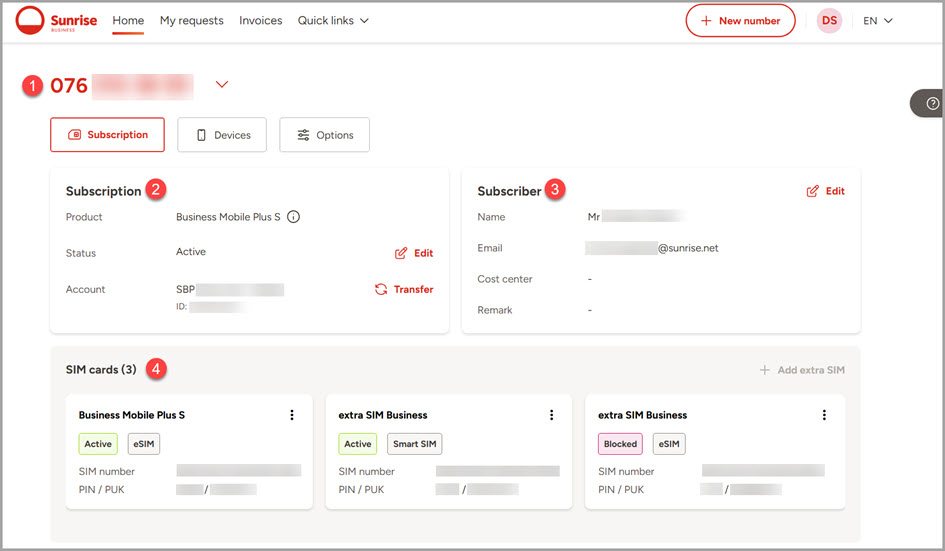
Number selector: To manage your account's mobile numbers, please select the desired number. If you have more than five subscriptions, you may use the search box to access the specific subscription.
Subscription: In this section, you find the name of the business rate plan and additional details such as contract duration and status. If allowed by your company policy, the following operations are allowed:
Status / Set as primary: If you have more than one mobile number, you can define one to be marked as «primary». This information is present in the subscription inventory available to your company.
Status / Cease subscription: Terminate the subscription (disconnection of service). This operation cannot be reverted.
Account / Transfer to another employee: Transfer your mobile number to another employee of your organization.
Account / Transfer to private: Request the transfer of the mobile number to a Sunrise private subscription for personal use. This is a manual process which is going to be carried out by Sunrise business back office.
Subscriber: Here you see the details of the user/employee associated with the subscription. If allowed by your company policy, you are able to change the details directly in this area.
SIM cards: Shows the list of SIM cards associated with the currently selected subscription (main and extra ones). If allowed by your company policy, you are able to perform SIM operations such as block/unblock, change card type and even order extra SIMs directly from this section.
Parallel Ringing
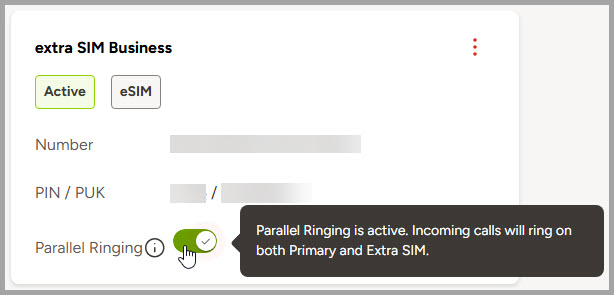
In this section, you can manage the «Parallel ringing» feature, which allows you to use your mobile number across multiple voice-capable devices. The «Parallel ringing» toggle gives you full control over how incoming calls are handled between your main SIM and the «extra SIM surf & talk plus». When activated, all devices with active SIMs will ring at the same time, so you can answer from whichever device is most convenient.
When Parallel Ringing is ON: Incoming calls are routed simultaneously to both the Primary SIM and the Extra SIM.
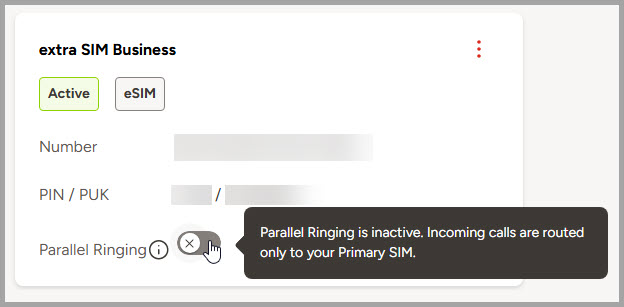
When Parallel Ringing is OFF: Incoming calls are routed only to your Primary SIM.
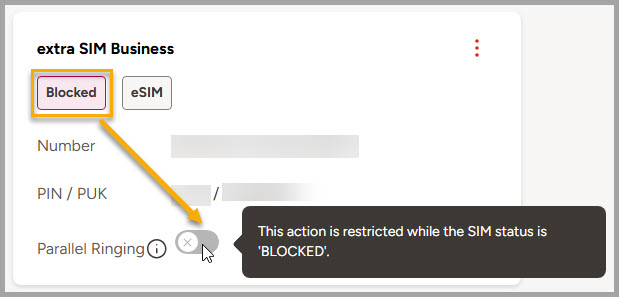
Note: If the subscription status is Suspended or the SIM status is Blocked, the toggle will be inactive.
Important: This functionality is available only for the product «Extra SIM surf & talk plus». For all other extra SIM products, the toggle and its functionality are not available.
Settings
In this section, you can manage features for each subscription, including:
Sunrise Mailbox – missed calls are routed to voicemail, and you will receive an SMS alert whenever a new voicemail is received.
The mailbox toggle is displayed only for subscriptions with an eligible rate plan and synchronizes automatically with the Sunrise systems to reflect its current status.
Call forwarding – configure how incoming calls are redirected under specific conditions. You can activate or deactivate call forwarding using the toggle.
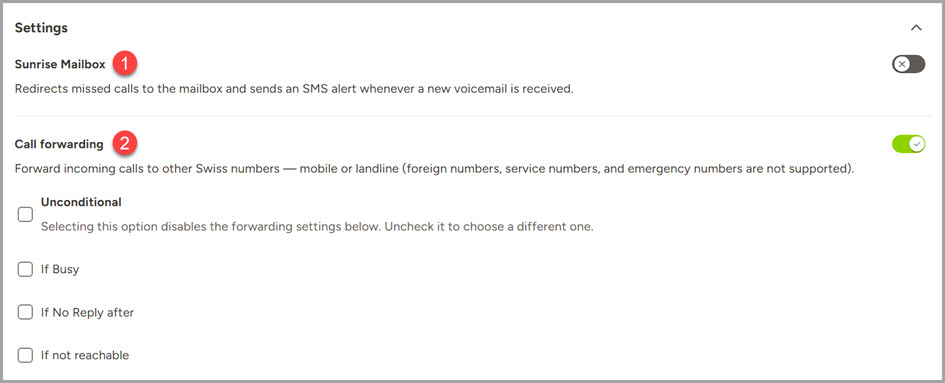
When active, you can define forwarding scenarios such as:
Unconditional – all calls are forwarded immediately.
Forward if Busy – calls are forwarded when your line is busy.
Forward if No Reply – calls are forwarded after a set delay (from 5 to 30 seconds).
Forward if Not reachable – calls are forwarded when your device is out of service or has no reception.
For each scenario, you can forward calls either to your «Sunrise Mailbox» or to another valid Swiss mobile or landline number. Premium-rate and short numbers are not allowed.
Note: If the Mailbox is inactive and selected as a forwarding destination, a message will prompt you to activate it before proceeding.
Blocking settings
Call filtering – activate the free call filter to block unnecessary advertising calls.
Fee based numbers in Switzerland – allow calls to and from fee based numbers.
International calls - block calls from Switzerland to other countries, as well as calls form abroad to other countries (incl. Switzerland). Calls within the country you are located are still possible.
Mobile internet - block mobile internet worldwide (incl. Switzerland).
Sunrise Pay - block Sunrise Pay (all providers, such as Google Play Store and ACE Group).
Premium SMS messages - allow or block select SMS categories including Adult, Operator services, Food & Beverage, Public services, Donations, Info & Entertainment, and All SMS.
Block individual SMS short codes - block or allow SMS messages to and from specific SMS short codes.
Other main areas of the portal include:
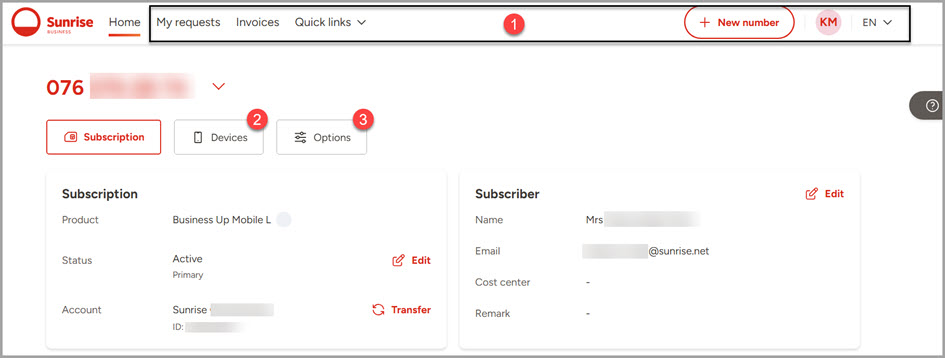
Header: Navigation through the different sections of the portal, which can be displayed, based on your company's policy such as:
My requests: History of the requests created by the user in the Sunrise Business Cockpit.
Invoices
Quick links: Access to the Help center, Terms and conditions or Company content pages, if allowed by your company's policy.
New number: Add a new mobile subscription.
Profile menu: View and modify user profile, credit card information, account export and log out from the portal.
Language selector: Change the language of the portal (available in DE, FR, IT and EN).
Devices: Manage the devices associated with the subscription.
Options: In this section, you can order and manage personal options for the subscription, which you can purchase using a private credit card if allowed by your company policy.
Please make sure that the email from subscriber details matches the email used for login, or verify that the account which you informed during the registration process is correct. If all this information is correct but you still cannot see the subscription data, please contact your fleet manager.
Your subscription might have a pending order, or it could be that your company's corporate policy does not permit it. Please contact your fleet manager.