

Basic operations and dashboard overview


Dashboard overview
You are now on the dashboard – the app's home screen. It gives you an overview of your security status and quick access to key features: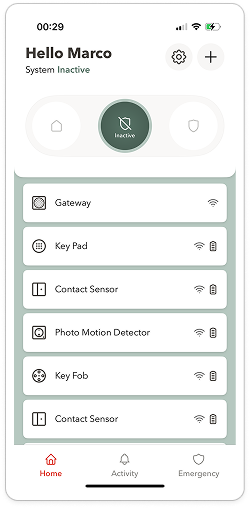
The three security modes
Switch between Active, Inactive and Home mode to match your current situation.Settings
In the Settings menu, you can manage and customise different sections of your Home Security app."+" icon
Add devices, residents and emergency contacts.
Devices
View all connected devices, such as cameras, sensors, or sirens, in one place.Activity
A chronological log displays all events – e.g., alarm activations/deactivations, motion alerts, camera snapshots and video recordings – all with timestamps.Emergency
Tap the emergency icon to request help quickly or notify your predefined emergency contacts.
System Inactive
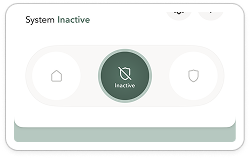
No sensors in your home are active. This is useful when you’re at home and want the freedom to go outside and come back in.
System Active
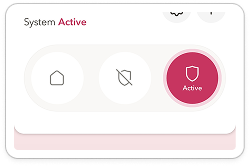
All sensors are active and will trigger an alarm.
This mode should be used when leaving the house.
System At Home
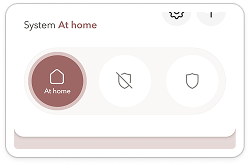
For when you’re at home and only want certain sensors to be active. You can choose them with the app.
You can access the settings by tapping the cog icon in the top right of the dashboard.


Emergency contacts
Add people to be notified in case of an emergency.Residents
Manage access for other users living in your household.Smart routines
Automate routines – for example, activate the alarm at specific times or trigger actions based on motion.System settings
Manage your devices, access technical support, and view system details.App preferences
Customize the dashboard view, manage notifications, or enable Face ID for quick and secure login.
If you tap the "+" icon in the top right corner of the dashboard, you can add and manage devices in your Home Security set. The app will guide you step by step through the entire setup process – from selecting the device type to connecting it to your system successfully.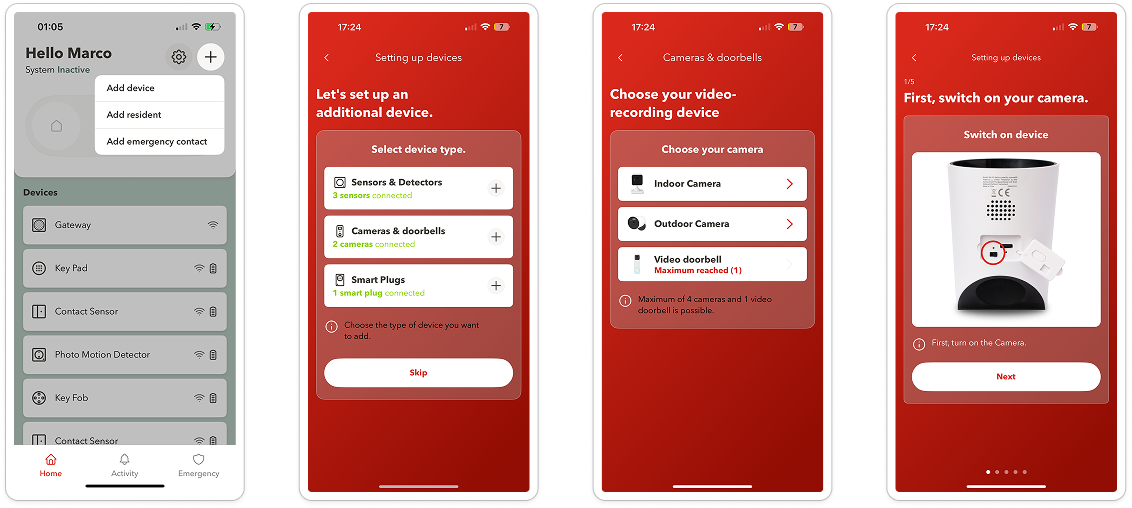
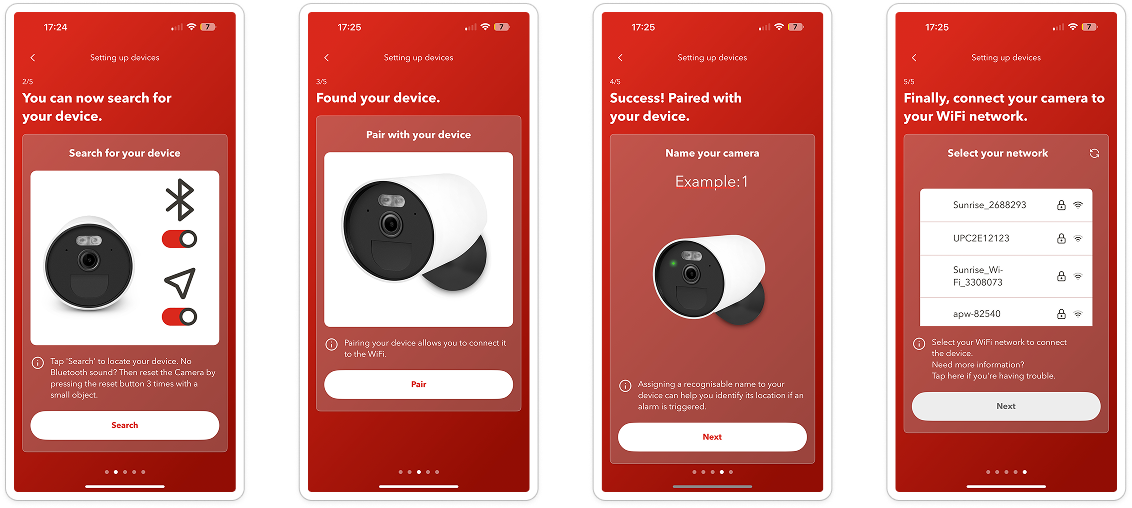
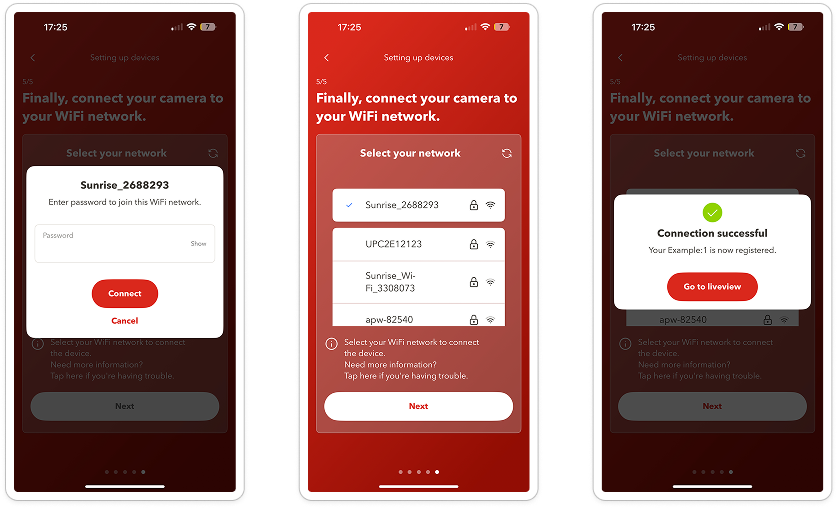
Connect additional devices
Add new security devices such as sensors or motion detectors to your system.Manage additional devices
Adjust settings for devices that are already connected.Remove devices
Disconnect devices that are no longer needed from the system.


Connect additional devices
Add new security components such as sensors or motion detectors to your system.
Manage additional devices
Adjust settings for devices that are already connected.
Remove devices
Disconnect devices that are no longer needed from the system.
Go to the "Activity" section on the dashboard to view all triggered alarms, notifications, photos and videos in chronological order.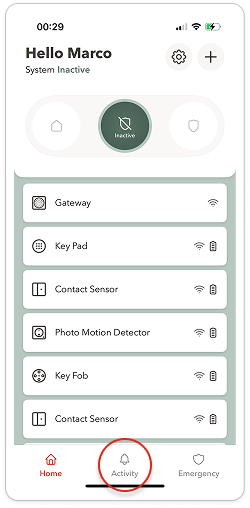
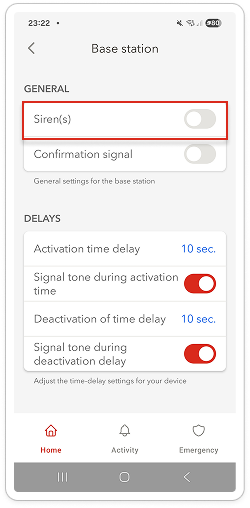
Go to the Base Station (Gateway) section in the dashboard and navigate to "GENERAL" to turn the siren and confirmation tone on or off.

Attention
Don't forget that the siren is very loud. It should only be activated if really necessary.